Cwaldbot Complete Guide: Setup, Security & Troubleshooting 2026
Last Updated: February 13, 2026 | Reading Time: 18 minutes
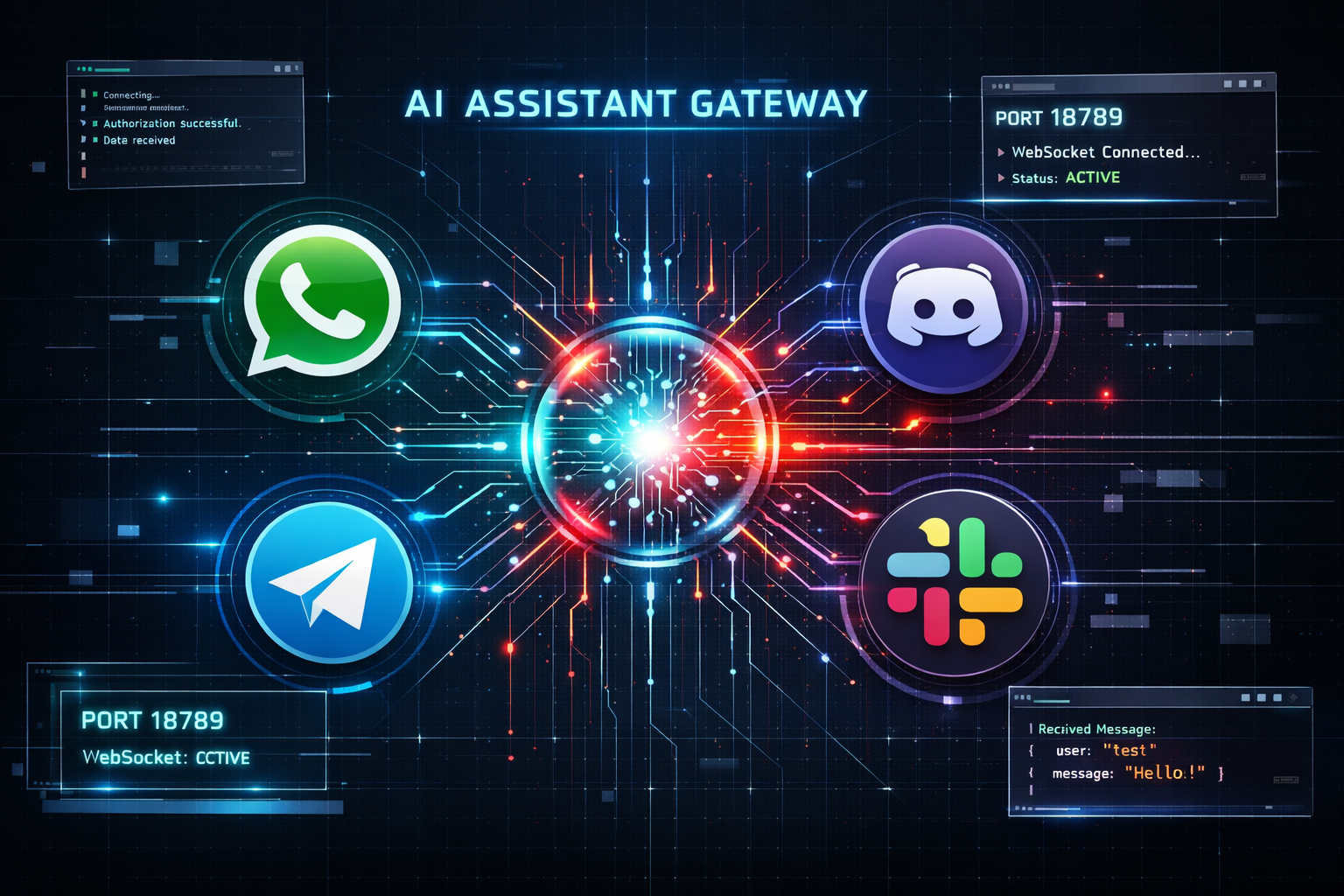
Table of Contents
What is Cwaldbot (OpenClaw)?
Definition: Cwaldbot, officially known as OpenClaw, is an open-source personal AI assistant framework that enables users to run their own AI-powered bot across multiple messaging platforms including WhatsApp, Telegram, Discord, Slack, Signal, and iMessage.
Cwaldbot represents a significant advancement in personal AI automation. Unlike cloud-based AI services, cwaldbot operates as a self-hosted solution, giving users complete control over their data and AI interactions. The project originated from the openclaw repository on GitHub and has evolved into a comprehensive AI assistant platform.
The system functions as a gateway between various messaging platforms and AI language models, primarily leveraging Anthropic’s Claude and OpenAI’s GPT models. It provides a unified interface for AI interactions across multiple channels while maintaining privacy and customization capabilities.
Key Features of Cwaldbot
- Multi-Platform Support: Connects to 15+ messaging platforms simultaneously
- Local-First Architecture: Runs on your own infrastructure with complete data control
- WebSocket Gateway: Centralized control plane for all communications
- Voice Integration: Supports voice wake and talk mode on macOS/iOS/Android
- Browser Automation: Built-in Chrome/Chromium control for web tasks
- Canvas Rendering: Agent-driven visual workspace capabilities
- Skill System: Extensible functionality through custom skills
- Session Management: Sophisticated context and conversation handling
Architecture & Core Components
Understanding cwaldbot’s architecture is essential for proper setup and troubleshooting. The system follows a modular, gateway-based design that separates concerns and enables scalability.
System Architecture Overview
┌─────────────────────────────────────────────────────────────┐
│                    Messaging Channels                        │
│  WhatsApp │ Telegram │ Slack │ Discord │ Signal │ iMessage  │
└──────────────────────┬──────────────────────────────────────┘
                       │
                       ▼
┌─────────────────────────────────────────────────────────────┐
│                   Gateway Control Plane                      │
│            ws://127.0.0.1:18789 (WebSocket)                  │
│  ┌────────────┬──────────────┬──────────────┬────────────┐ │
│  │  Session   │   Channel    │    Tool      │   Event    │ │
│  │  Manager   │   Router     │   Registry   │   Bus      │ │
│  └────────────┴──────────────┴──────────────┴────────────┘ │
└──────────────────────┬──────────────────────────────────────┘
                       │
           ┌───────────┼───────────┐
           │           │           │
           ▼           ▼           ▼
    ┌──────────┐  ┌────────┐  ┌──────────┐
    │   Pi     │  │  CLI   │  │  Web     │
    │  Agent   │  │ Tools  │  │   UI     │
    │  (RPC)   │  │        │  │          │
    └──────────┘  └────────┘  └──────────┘
           │
           ▼
    ┌──────────────────────────────┐
    │    AI Model Providers         │
    │  Anthropic │ OpenAI │ Others │
    └──────────────────────────────┘
Core Components Explained
| Component | Function | Technology |
|---|---|---|
| Gateway | Central WebSocket server managing all connections and routing | Node.js, WebSocket |
| Pi Agent | Core AI runtime handling model interactions and tool execution | RPC, Streaming API |
| Channel Adapters | Platform-specific connectors (Baileys for WhatsApp, grammY for Telegram) | Various SDKs |
| Session Manager | Handles conversation context, user isolation, and state persistence | In-memory + File system |
| Tool Registry | Manages available tools (bash, browser, canvas, nodes) | TypeScript, TypeBox schemas |
| Skills System | Extensible functionality through SKILL.md files in workspace | Markdown, Prompt injection |
| Control UI | Web-based dashboard for monitoring and management | React, Tailwind CSS |
Data Flow Architecture
- Message Reception: User sends message via any connected channel (WhatsApp, Telegram, etc.)
- Gateway Routing: Message arrives at Gateway WebSocket server on port 18789
- Session Identification: Gateway identifies or creates session for user/channel combination
- Agent Processing: Pi Agent receives message with context and available tools
- Model Interaction: Agent sends prompt to configured AI model (Claude, GPT)
- Tool Execution: If model requests tools (bash, browser), Gateway executes them
- Response Assembly: Agent compiles final response with tool outputs
- Channel Delivery: Gateway routes response back through appropriate channel adapter
Installation & Setup
Installing cwaldbot requires Node.js 22 or higher and follows a straightforward process using npm, pnpm, or bun. The official installation method uses the interactive onboarding wizard.
System Requirements
| Requirement | Minimum | Recommended |
|---|---|---|
| Node.js Version | 22.0.0 | 22.x (latest) |
| RAM | 2 GB | 4 GB+ |
| Storage | 500 MB | 2 GB+ |
| Operating System | Linux, macOS, Windows (WSL2) | Linux/macOS |
| Network | Internet connection | Stable broadband |
Quick Installation (Recommended Method)
The fastest way to get started is using the global npm installation with the onboarding wizard:
# Install cwaldbot globally
npm install -g openclaw@latest

# Run the onboarding wizard (installs daemon service)
openclaw onboard --install-daemon

# Verify installation
openclaw doctor
The openclaw doctor command performs comprehensive system checks and identifies configuration issues. Always run this after installation to catch potential problems early.
Installation from Source (Advanced)
For developers who want to modify cwaldbot or contribute to the project, installing from source provides more flexibility:
# Clone the repository
git clone https://github.com/openclaw/openclaw.git
cd openclaw

# Install dependencies (pnpm preferred)
pnpm install

# Build UI components
pnpm ui:build

# Build the project
pnpm build

# Run onboarding wizard
pnpm openclaw onboard --install-daemon

# Development mode with auto-reload
pnpm gateway:watch
Docker Installation (Containerized)
For production deployments or isolated environments, Docker provides a clean installation path:
# Using docker-compose
docker-compose up -d

# Manual Docker build
docker build -t openclaw .
docker run -p 18789:18789 -v ~/.openclaw:/root/.openclaw openclawPost-Installation Steps
- Configure AI Provider: Set up API keys for Anthropic or OpenAI
- Initialize Gateway: Start the Gateway service on port 18789
- Connect Channels: Link desired messaging platforms
- Test Basic Functionality: Send test message through CLI
- Configure Security: Set up allowlists and DM policies
# Start Gateway in foreground
openclaw gateway --port 18789 --verbose

# In another terminal, test CLI interaction
openclaw agent --message "Hello, are you working?"

# Check Gateway status
openclaw gateway statusConfiguration Guide
Cwaldbot’s configuration lives in ~/.openclaw/openclaw.json and controls every aspect of the system from AI models to security policies. Understanding this configuration is crucial for both functionality and security.
Basic Configuration Structure
{
  "agent": {
    "model": "anthropic/claude-opus-4-5",
    "workspace": "~/.openclaw/workspace"
  },
  "gateway": {
    "port": 18789,
    "bind": "loopback",
    "auth": {
      "mode": "password",
      "password": "your-secure-password-here"
    }
  },
  "channels": {
    "telegram": {
      "botToken": "YOUR_TELEGRAM_BOT_TOKEN",
      "allowFrom": ["@username1", "@username2"]
    },
    "whatsapp": {
      "allowFrom": ["+1234567890", "+9876543210"]
    },
    "discord": {
      "token": "YOUR_DISCORD_BOT_TOKEN",
      "dm": {
        "policy": "pairing",
        "allowFrom": []
      }
    }
  },
  "browser": {
    "enabled": true,
    "color": "#FF4500"
  }
}
Critical Configuration Sections
1. Agent Configuration
The agent section defines which AI model to use and core behavioral parameters:
| Parameter | Description | Example Values |
|---|---|---|
model |
AI model identifier | anthropic/claude-opus-4-5, openai/gpt-4 |
workspace |
Directory for skills and workspace files | ~/.openclaw/workspace |
thinkingLevel |
Extended thinking depth (GPT-5.2+ only) | off, minimal, low, medium, high, xhigh |
temperature |
Response randomness (0.0-2.0) | 0.7 (default), 1.0 (creative) |
2. Gateway Configuration
Gateway settings control network access and authentication:
"gateway": {
  "port": 18789,
  "bind": "loopback",  // "loopback" or "all"
  "auth": {
    "mode": "password",  // "none", "password", "token"
    "password": "secure-password",
    "allowTailscale": true
  },
  "tailscale": {
    "mode": "serve",  // "off", "serve", "funnel"
    "resetOnExit": true
  }
}bind: "all" without proper authentication. This exposes your Gateway to the internet, allowing anyone to send commands to your system. Always use "bind": "loopback" and Tailscale Serve/Funnel for remote access.
3. Channel Allowlists
Each channel requires explicit allowlists to prevent unauthorized access:
"channels": {
  "telegram": {
    "allowFrom": ["@username1", "@username2"],
    "groups": {
      "*": {
        "requireMention": true
      }
    }
  },
  "whatsapp": {
    "allowFrom": ["+1234567890"],
    "groups": {
      "[email protected]": {
        "requireMention": false
      }
    }
  },
  "discord": {
    "dm": {
      "policy": "pairing",  // "open", "pairing", "closed"
      "allowFrom": ["123456789012345678"]
    },
    "guilds": {
      "987654321098765432": {
        "channels": ["general", "bot-commands"],
        "requireMention": true
      }
    }
  }
}
Environment Variables
Sensitive credentials should be stored as environment variables rather than in configuration files:
# Create .env file in project root
TELEGRAM_BOT_TOKEN=123456:ABCDEF
DISCORD_BOT_TOKEN=MTk4NjIyNDgz
SLACK_BOT_TOKEN=xoxb-
SLACK_APP_TOKEN=xapp-
ANTHROPIC_API_KEY=sk-ant-
OPENAI_API_KEY=sk-
Environment variables always take precedence over configuration file values, providing a secure way to manage secrets.
Configuration Best Practices
- Use environment variables for all API keys and tokens
- Keep
openclaw.jsonin version control, but never commit with real credentials - Set explicit allowlists for every channel before going live
- Use Tailscale Serve instead of binding to all interfaces
- Enable password authentication even for Tailscale exposure
- Regularly backup your configuration directory (
~/.openclaw) - Test configuration changes with
openclaw doctor
For comprehensive configuration options, consult the official configuration reference.
Channel Integration
Cwaldbot’s power lies in its ability to connect to multiple messaging platforms simultaneously. Each channel has specific setup requirements and security considerations.
WhatsApp Integration
WhatsApp uses the Baileys library for connection. Setup requires scanning a QR code with your phone:
# Start WhatsApp linking process
openclaw channels login

# Follow on-screen QR code instructions
# Credentials saved to ~/.openclaw/credentials
WhatsApp Security Configuration:
"whatsapp": {
  "allowFrom": ["+1234567890", "+9876543210"],
  "groups": {
    "[email protected]": {
      "requireMention": true,
      "activation": "mention"
    },
    "*": null  // Disallow all other groups
  }
}
Telegram Integration
Telegram requires creating a bot through @BotFather:
- Message @BotFather on Telegram
- Send
/newbotcommand - Follow prompts to name your bot
- Copy the bot token provided
- Add token to configuration or environment
TELEGRAM_BOT_TOKEN=123456:ABCDEF

# Or in openclaw.json:
"telegram": {
  "botToken": "123456:ABCDEF",
  "allowFrom": ["@yourusername"],
  "groups": {
    "-1001234567890": {
      "requireMention": true
    }
  }
}
Discord Integration
Discord bots require application setup in the Discord Developer Portal:
- Visit Discord Developer Portal
- Create new application
- Navigate to “Bot” section and create bot
- Enable required Privileged Gateway Intents:
- Server Members Intent
- Message Content Intent
- Copy bot token
- Generate OAuth2 URL with appropriate permissions
- Invite bot to your server
"discord": {
  "token": "YOUR_BOT_TOKEN",
  "dm": {
    "policy": "pairing",
    "allowFrom": []
  },
  "guilds": {
    "123456789012345678": {
      "channels": ["bot-commands", "general"],
      "requireMention": true
    }
  }
}
Slack Integration
Slack requires creating a Slack app with socket mode enabled:
SLACK_BOT_TOKEN=xoxb-your-token
SLACK_APP_TOKEN=xapp-your-token

"slack": {
  "botToken": "xoxb-",
  "appToken": "xapp-",
  "allowFrom": ["U12345678"]
}
Signal Integration
Signal requires installing and configuring signal-cli on your system:
# Install signal-cli (Linux example)
wget https://github.com/AsamK/signal-cli/releases/download/v0.11.5/signal-cli-0.11.5.tar.gz
tar xf signal-cli-0.11.5.tar.gz -C /opt
ln -sf /opt/signal-cli-0.11.5/bin/signal-cli /usr/local/bin/

# Register phone number
signal-cli -u +1234567890 register

# Verify with SMS code
signal-cli -u +1234567890 verify CODE

# Configuration
"signal": {
  "number": "+1234567890",
  "allowFrom": ["+9876543210"]
}
iMessage Integration (macOS only)
iMessage integration requires macOS with Messages app signed in:
"imessage": {
  "allowFrom": ["+1234567890", "[email protected]"],
  "groups": null  // Disable group support for security
}Channel-Specific Security Policies
| Channel | Default DM Policy | Recommended Policy | Risk Level |
|---|---|---|---|
| Pairing | Explicit allowlist only | High | |
| Telegram | Pairing | Username allowlist + pairing | Medium |
| Discord | Pairing | User ID allowlist + pairing | Medium |
| Slack | Pairing | User ID allowlist | Low (workspace) |
| Signal | Pairing | Phone number allowlist | High |
| iMessage | Pairing | Phone/email allowlist only | Very High |
For detailed channel-specific configuration, visit the official channels documentation.
Security Concerns & Best Practices
Cwaldbot’s architecture grants significant system access by design. Understanding and mitigating security risks is paramount before deployment, especially when connecting to public messaging platforms.
Default Security Model
By default, cwaldbot operates with these security characteristics:
- Tools run on the host system with full user permissions
- The “main” session (direct user interaction) has unrestricted tool access
- Bash commands execute with your user’s privileges
- File system access limited only by user permissions
- Browser control can navigate to any URL and interact with any site
- Network requests have no built-in filtering
Essential Security Configurations
1. DM Pairing Policy
The DM pairing policy prevents unknown users from interacting with your bot:
"channels": {
  "telegram": {
    "dmPolicy": "pairing",  // Require pairing code
    "allowFrom": ["@trusteduser"]
  },
  "discord": {
    "dm": {
      "policy": "pairing",  // Never use "open"
      "allowFrom": []
    }
  }
}
With pairing enabled, unknown senders receive a pairing code and must be approved:
# Approve a pairing request
openclaw pairing approve telegram ABC123

# List pending pairing requests
openclaw pairing list

# Revoke access
openclaw pairing revoke telegram @username
2. Sandbox Mode for Non-Main Sessions
Run group chats and channels in Docker sandboxes to isolate their execution environment:
"agents": {
  "defaults": {
    "sandbox": {
      "mode": "non-main",  // Sandbox all non-main sessions
      "allowlist": [
        "bash",
        "process",
        "read",
        "write",
        "edit"
      ],
      "denylist": [
        "browser",
        "canvas",
        "nodes",
        "cron",
        "gateway"
      ]
    }
  }
}
This configuration ensures that group messages execute in isolated Docker containers without access to sensitive tools.
3. Network Binding Restrictions
Never bind the Gateway to all interfaces without authentication:
// DANGEROUS - Never use this
"gateway": {
  "bind": "all",
  "auth": {
    "mode": "none"
  }
}

// SAFE - Use loopback with Tailscale
"gateway": {
  "bind": "loopback",
  "auth": {
    "mode": "password",
    "password": "strong-password-here"
  },
  "tailscale": {
    "mode": "serve"  // Tailscale-only access
  }
}
4. Tool Restrictions
Limit available tools on a per-session or per-channel basis:
"channels": {
  "discord": {
    "guilds": {
      "123456789": {
        "tools": {
          "allowlist": ["read", "write"],
          "denylist": ["bash", "browser", "system"]
        }
      }
    }
  }
}
Security Best Practices Checklist
- ✅ Enable DM pairing on all channels
- ✅ Maintain explicit allowlists for every channel
- ✅ Use sandbox mode for group chats and public channels
- ✅ Bind Gateway to loopback only
- ✅ Enable password authentication
- ✅ Use Tailscale Serve for remote access (not Funnel)
- ✅ Regularly review and audit access logs
- ✅ Run
openclaw doctorto detect misconfigurations - ✅ Keep cwaldbot updated to latest version
- ✅ Use environment variables for all credentials
- ✅ Never commit credentials to version control
- ✅ Implement rate limiting for production deployments
Monitoring and Auditing
Implement logging and monitoring to detect suspicious activity:
# Enable verbose logging
openclaw gateway --verbose

# Monitor logs in real-time
tail -f ~/.openclaw/logs/gateway.log

# Review session history
openclaw sessions list
openclaw sessions history main
For comprehensive security guidance, consult the official security documentation.
Dangerous Features & Risks
Cwaldbot includes several features that provide powerful functionality but carry significant security risks if misconfigured or exposed to untrusted users.
1. Bash Tool Execution
The bash tool allows the AI to execute arbitrary shell commands with your user’s permissions.
Any user who can send messages to your bot can potentially:
- Execute arbitrary commands (
rm -rf,curl, etc.) - Install software via package managers
- Modify system configurations
- Access sensitive files and environment variables
- Establish reverse shells or backdoors
Mitigation Strategies:
// Disable bash for non-main sessions
"agents": {
  "defaults": {
    "sandbox": {
      "denylist": ["bash"]
    }
  }
}

// Run in Docker sandbox with limited permissions
"sandbox": {
  "mode": "non-main",
  "allowlist": ["read", "write"],
  "denylist": ["bash", "system"]
}
2. Browser Control
The browser tool provides full Chrome/Chromium automation capabilities:
Potential attack vectors:
- Navigate to phishing sites and capture credentials
- Interact with authenticated web applications
- Download and execute malicious files
- Access local files via file:// protocol
- Bypass CORS and same-origin policies
Mitigation:
"browser": {
  "enabled": false,  // Disable entirely for untrusted users
  "allowedDomains": [  // Whitelist approach
    "example.com",
    "trusted-site.org"
  ]
}
3. File System Access
The read, write, and edit tools provide direct file system manipulation:
Potential risks:
- Read sensitive files (SSH keys, credentials, personal documents)
- Modify configuration files
- Delete important data
- Plant malicious files
Mitigation with workspace isolation:
"agents": {
  "defaults": {
    "workspace": "~/.openclaw/workspace",
    "workspaceIsolation": true,  // Restrict to workspace only
    "sandbox": {
      "allowlist": ["read", "write"],
      "pathRestrictions": [
        "~/.openclaw/workspace/*"  // Only allow workspace access
      ]
    }
  }
}
4. Canvas and Node Integration
Canvas provides visual rendering and UI interaction capabilities:
Concerns:
- Display misleading UI elements
- Phishing via convincing visual replicas
- Excessive resource consumption
5. Session and Gateway Control
Tools like sessions_send and gateway configuration access:
Allows attackers to:
- Message other users from your bot
- Modify gateway configuration
- Access other sessions’ data
- Impersonate the bot to other users
Essential restrictions:
"agents": {
  "defaults": {
    "sandbox": {
      "denylist": [
        "sessions_send",
        "gateway",
        "cron"
      ]
    }
  }
}
6. Cron Jobs and Webhooks
Automated task scheduling can be weaponized:
Dangers:
- Schedule persistent malicious tasks
- Create webhook endpoints for command and control
- Establish persistence mechanisms
Risk Assessment by Feature
| Feature | Risk Level | Default State | Recommended Action |
|---|---|---|---|
| bash tool | CRITICAL | Enabled | Disable for non-main, use sandbox |
| browser | HIGH | Optional | Disable or domain-whitelist |
| file read/write | HIGH | Enabled | Workspace isolation |
| sessions_send | CRITICAL | Enabled | Disable for untrusted |
| gateway control | CRITICAL | Enabled | Disable entirely |
| cron/webhooks | HIGH | Optional | Disable for groups |
| canvas | MEDIUM | Optional | Monitor usage |
Production Security Template
Use this template for production deployments with untrusted users:
{
  "gateway": {
    "bind": "loopback",
    "auth": {
      "mode": "password",
      "password": "CHANGE_THIS_PASSWORD"
    },
    "tailscale": {
      "mode": "serve"
    }
  },
  "agents": {
    "defaults": {
      "sandbox": {
        "mode": "non-main",
        "allowlist": [
          "read",
          "write",
          "edit",
          "process"
        ],
        "denylist": [
          "bash",
          "browser",
          "canvas",
          "nodes",
          "cron",
          "gateway",
          "sessions_send",
          "system"
        ]
      }
    }
  },
  "channels": {
    "telegram": {
      "dmPolicy": "pairing",
      "allowFrom": []
    },
    "discord": {
      "dm": {
        "policy": "pairing"
      }
    }
  }
}
For more security hardening techniques, see the Node.js Security Best Practices guide.
Common Issues & Troubleshooting
Even with proper configuration, you may encounter issues. This section covers the most common problems and their solutions.
Gateway Connection Issues
Issue: Gateway Won’t Start
Symptoms: Gateway fails to start, port already in use error
# Check if port 18789 is already in use
lsof -i :18789
netstat -tuln | grep 18789

# Kill existing process if found
kill $(lsof -t -i:18789)

# Or use a different port
openclaw gateway --port 18790
Issue: Cannot Connect to Gateway
Symptoms: CLI tools or apps cannot connect to ws://127.0.0.1:18789
# Verify Gateway is running
openclaw gateway status

# Check firewall rules
sudo ufw status
sudo firewall-cmd --list-all

# Test WebSocket connection
curl -i -N -H "Connection: Upgrade" \
     -H "Upgrade: websocket" \
     -H "Sec-WebSocket-Key: test" \
     -H "Sec-WebSocket-Version: 13" \
     http://localhost:18789/
Channel Connection Problems
WhatsApp QR Code Not Scanning
# Ensure no other WhatsApp Web sessions
# Clear credentials and retry
rm -rf ~/.openclaw/credentials/whatsapp
openclaw channels login

# Use verbose mode to see detailed logs
openclaw gateway --verbose
Telegram Bot Not Responding
Checklist:
- Verify bot token is correct in configuration/environment
- Check if bot is added to the chat/group
- Confirm username is in allowFrom list
- Test with direct message before groups
- Check Telegram API status
# Test bot token validity
curl https://api.telegram.org/bot${TELEGRAM_BOT_TOKEN}/getMe

# Check updates
curl https://api.telegram.org/bot${TELEGRAM_BOT_TOKEN}/getUpdates
Discord Bot Offline
# Verify required intents are enabled
# - Server Members Intent
# - Message Content Intent

# Check bot token format
echo $DISCORD_BOT_TOKEN | cut -d'.' -f1 | base64 -d

# View Gateway logs
openclaw gateway --verbose 2>&1 | grep discord
AI Model Issues
API Key Errors
# Verify API key is set
echo $ANTHROPIC_API_KEY
echo $OPENAI_API_KEY

# Test API key validity
curl https://api.anthropic.com/v1/messages \
  -H "x-api-key: $ANTHROPIC_API_KEY" \
  -H "anthropic-version: 2023-06-01" \
  -H "content-type: application/json" \
  -d '{"model":"claude-3-opus-20240229","max_tokens":10,"messages":[{"role":"user","content":"Hi"}]}'
Rate Limiting
Symptoms: 429 errors or slow responses during high usage
# Configure rate limiting in openclaw.json
"agents": {
  "defaults": {
    "rateLimiting": {
      "requestsPerMinute": 10,
      "tokensPerMinute": 100000
    }
  }
}
Docker and Sandbox Issues
Docker Not Available
# Check Docker installation
docker --version
docker ps

# Start Docker service
sudo systemctl start docker
sudo systemctl enable docker

# Add user to docker group
sudo usermod -aG docker $USER
newgrp docker
Sandbox Initialization Failures
# Pull required Docker images
docker pull openclaw/sandbox
docker pull openclaw/sandbox-browser

# Check Docker permissions
docker run hello-world

# View sandbox logs
docker logs $(docker ps -a -q --filter ancestor=openclaw/sandbox)
Performance Issues
High Memory Usage
# Monitor cwaldbot memory
ps aux | grep openclaw

# Check Node.js heap usage
node --max-old-space-size=4096 $(which openclaw) gateway

# Configure session pruning
"agents": {
  "defaults": {
    "sessionPruning": {
      "enabled": true,
      "maxMessages": 100,
      "maxTokens": 100000
    }
  }
}
Slow Response Times
- Check AI provider API latency
- Reduce thinking level if using GPT-5.2
- Implement response caching
- Use faster models (Haiku instead of Opus)
- Optimize tool usage
File and Permission Issues
Workspace Permission Denied
# Fix workspace permissions
chmod -R 755 ~/.openclaw/workspace
chown -R $USER:$USER ~/.openclaw

# Verify workspace location
openclaw config get agents.defaults.workspace
Skills Not Loading
# Check skills directory structure
ls -la ~/.openclaw/workspace/skills

# Verify SKILL.md files exist
find ~/.openclaw/workspace/skills -name "SKILL.md"

# Test skill loading
openclaw skills list
openclaw skills validate
Using the Doctor Command
The built-in doctor command performs comprehensive diagnostics:
# Run full diagnostics
openclaw doctor

# Specific category checks
openclaw doctor --category network
openclaw doctor --category permissions
openclaw doctor --category configuration
Doctor command checks:
- Node.js version compatibility
- Required dependencies installed
- Configuration file validity
- API key presence and format
- Port availability
- File permissions
- Channel configuration
- Security misconfigurations
- Docker availability (if sandbox enabled)
For more troubleshooting resources, visit the official troubleshooting guide or the Node.js debugging guide.
Advanced Usage & Tips
Once you have cwaldbot running reliably, these advanced techniques unlock additional functionality and optimization.
Multi-Agent Workspaces
Run multiple specialized agents with different configurations:
"agents": {
  "personal": {
    "model": "anthropic/claude-opus-4-5",
    "workspace": "~/.openclaw/workspaces/personal",
    "tools": {
      "allowlist": ["bash", "browser", "read", "write"]
    }
  },
  "public": {
    "model": "anthropic/claude-sonnet-4-5",
    "workspace": "~/.openclaw/workspaces/public",
    "sandbox": {
      "mode": "always",
      "allowlist": ["read", "process"]
    }
  }
}

# Route channels to specific agents
"channels": {
  "telegram": {
    "agent": "personal",
    "allowFrom": ["@yourusername"]
  },
  "discord": {
    "agent": "public"
  }
}
Custom Skills Development
Create custom skills to extend cwaldbot’s capabilities:
# Create skill directory
mkdir -p ~/.openclaw/workspace/skills/custom-skill

# Create SKILL.md
cat > ~/.openclaw/workspace/skills/custom-skill/SKILL.md << 'EOF'
# Custom Skill Name

## Purpose
Describe what this skill does

## Usage
When the user asks for [specific task], use this skill

## Implementation
```python
# Example code
def custom_function():
    return "result"
```

## Examples
- User: "Do the custom task"
- Assistant: [uses skill] Result from custom task
EOF
Session Management Strategies
Optimize conversation context and memory usage:
# Compact session to summarize context
openclaw sessions compact main

# List all active sessions
openclaw sessions list

# View session history
openclaw sessions history main --limit 50

# Send message to specific session
openclaw sessions send target-session "Message content"
Webhook Integration
Create webhook endpoints for external systems:
"webhooks": {
  "github": {
    "path": "/webhooks/github",
    "secret": "your-webhook-secret",
    "handler": "~/.openclaw/workspace/webhooks/github.js"
  }
}

# Test webhook
curl -X POST http://localhost:18789/webhooks/github \
  -H "Content-Type: application/json" \
  -H "X-Hub-Signature: sha256=..." \
  -d '{"action":"opened","pull_request":{}}'
Cron Job Automation
Schedule recurring tasks:
"cron": {
  "dailySummary": {
    "schedule": "0 9 * * *",  // 9 AM daily
    "action": "send",
    "target": "telegram:@username",
    "message": "Generate daily summary of yesterday's activities"
  },
  "weeklyBackup": {
    "schedule": "0 0 * * 0",  // Sunday midnight
    "action": "bash",
    "command": "tar -czf ~/.openclaw/backups/weekly-$(date +%Y%m%d).tar.gz ~/.openclaw/workspace"
  }
}
Remote Gateway Management
Access your Gateway from anywhere using Tailscale:
# Enable Tailscale Serve
"gateway": {
  "tailscale": {
    "mode": "serve",
    "hostname": "cwaldbot",
    "resetOnExit": false
  }
}

# Connect from remote machine
openclaw gateway connect --url https://cwaldbot.your-tailnet.ts.net

# SSH tunnel alternative
ssh -L 18789:localhost:18789 user@remote-host
openclaw gateway connect --url ws://localhost:18789
Performance Optimization
Response Streaming
# Enable streaming for faster perceived responses
"agents": {
  "defaults": {
    "streaming": {
      "enabled": true,
      "chunkSize": 100  // Characters per chunk
    }
  }
}
Model Selection Strategy
| Use Case | Recommended Model | Reasoning |
|---|---|---|
| Complex reasoning, coding | claude-opus-4-5 | Highest capability, best for difficult tasks |
| General conversation | claude-sonnet-4-5 | Balanced performance and cost |
| Quick responses, summaries | claude-haiku-4-5 | Fastest, most economical |
| Extended thinking tasks | gpt-5.2 + high thinking | Deep reasoning capability |
Monitoring and Observability
# Enable comprehensive logging
"logging": {
  "level": "debug",
  "file": "~/.openclaw/logs/gateway.log",
  "maxSize": "100MB",
  "maxFiles": 10
}

# Monitor in real-time
tail -f ~/.openclaw/logs/gateway.log | grep ERROR

# Usage tracking
openclaw usage --period today
openclaw usage --period week --format json
Integration with External Tools
Gmail Pub/Sub for Email Automation
"integrations": {
  "gmail": {
    "enabled": true,
    "pubsub": {
      "topic": "projects/PROJECT_ID/topics/gmail",
      "subscription": "projects/PROJECT_ID/subscriptions/cwaldbot"
    },
    "filters": [
      {
        "from": "[email protected]",
        "action": "process",
        "agent": "personal"
      }
    ]
  }
}
For Gmail integration setup, see the Gmail Pub/Sub documentation.
Backup and Recovery
# Backup entire configuration and workspace
tar -czf cwaldbot-backup-$(date +%Y%m%d).tar.gz \
  ~/.openclaw/openclaw.json \
  ~/.openclaw/workspace \
  ~/.openclaw/credentials

# Restore from backup
tar -xzf cwaldbot-backup-20260213.tar.gz -C ~/

# Export specific session
openclaw sessions export main > session-backup.json

# Import session
openclaw sessions import < session-backup.json
For more advanced deployment patterns, check out the Node.js deployment guide and Docker Compose tutorial.
Frequently Asked Questions
General Questions
Q: What is the difference between cwaldbot and OpenClaw?
A: They are the same project. "Cwaldbot" is a colloquial name used by the community, while "OpenClaw" is the official project name. The GitHub repository is openclaw/openclaw, and the npm package is openclaw.
Q: Is cwaldbot free to use?
A: Yes, cwaldbot is open source under the MIT license. However, you need to pay for API access to AI models (Anthropic Claude or OpenAI GPT) which power the assistant. The software itself is free.
Q: Can I run cwaldbot without an internet connection?
A: No, cwaldbot requires internet connectivity to communicate with AI model APIs. However, local model support is being explored for future releases.
Q: Which AI model should I use?
A: For personal use with complex tasks, Claude Opus 4.5 is recommended for its superior reasoning and coding abilities. For budget-conscious deployments, Claude Sonnet 4.5 offers excellent balance. Claude Haiku 4.5 is best for simple, fast responses.
Setup and Configuration
Q: Can I run multiple instances of cwaldbot?
A: Yes, but each instance needs its own configuration directory and Gateway port. Use the --config flag to specify different config locations:
openclaw gateway --config ~/.openclaw-instance2/openclaw.json --port 18790Q: How do I update cwaldbot?
A: For npm installations, run npm update -g openclaw@latest. For source installations, use openclaw update --channel stable or pull the latest changes from GitHub and rebuild.
Q: Can I use cwaldbot on Windows?
A: Yes, but it's strongly recommended to use WSL2 (Windows Subsystem for Linux). Native Windows support exists but is not fully tested. Install WSL2 and follow the Linux installation instructions.
Q: What ports does cwaldbot use?
A: By default, the Gateway uses port 18789 for WebSocket connections. If you enable the Control UI, it serves on the same port via HTTP/WebSocket upgrade. All ports are configurable.
Security and Privacy
Q: Is my data private when using cwaldbot?
A: Your conversations are sent to AI model providers (Anthropic or OpenAI) according to their privacy policies. However, unlike cloud AI assistants, you control the infrastructure, logs, and can use local sandboxing. No data goes to the cwaldbot developers.
Q: Can someone hack my system through cwaldbot?
A: If misconfigured, yes. Cwaldbot grants significant system access by design. Always use DM pairing, explicit allowlists, and sandbox mode for untrusted users. Run openclaw doctor regularly to detect security issues.
Q: Should I expose cwaldbot to the public internet?
A: Only with extreme caution. Use Tailscale Serve for private access, or Funnel with mandatory password authentication. Never bind to all interfaces (bind: "all") without authentication.
Channels and Integration
Q: Why won't my WhatsApp QR code scan?
A: Ensure you don't have other WhatsApp Web sessions active. Try clearing credentials (rm -rf ~/.openclaw/credentials/whatsapp) and restarting the login process. Check that your phone has a stable internet connection.
Q: Can I use cwaldbot with my business WhatsApp account?
A: Technically yes, but WhatsApp's terms of service prohibit automated messaging on personal accounts. Consider using the official WhatsApp Business API for commercial use to avoid account bans.
Q: Does cwaldbot work with Slack workspaces?
A: Yes, but you need to create a Slack app and enable Socket Mode. The bot requires appropriate OAuth scopes and installation in your workspace. See the Slack integration guide.
Q: Can I connect cwaldbot to custom messaging platforms?
A: Yes, through the extension system. You can create custom channel adapters by implementing the channel interface. Check the extensions directory for examples.
Performance and Scaling
Q: How much does it cost to run cwaldbot per month?
A: Costs depend entirely on AI API usage. With Claude Opus 4.5, expect $15-60 per million tokens. Typical personal use ranges from $5-30/month. Heavy users with complex tasks can exceed $100/month.
Q: Can cwaldbot handle multiple users simultaneously?
A: Yes, the Gateway manages multiple concurrent sessions. Each user gets isolated context. Performance depends on your hardware and AI API rate limits.
Q: Why are responses slow?
A: Check AI provider API latency, reduce thinking level if using GPT-5.2, consider using faster models like Claude Haiku, and enable streaming for better perceived performance.
Troubleshooting
Q: What does "permission denied" mean when executing bash commands?
A: The bash tool runs with your user's permissions. Either the file/directory lacks proper permissions, or the command requires elevated privileges. Never run cwaldbot as root.
Q: Why can't I connect to the Gateway from my phone?
A: By default, the Gateway binds to loopback (localhost only). Use Tailscale Serve to expose it securely to your devices, or carefully configure network binding with authentication.
Q: How do I debug issues?
A: Enable verbose logging with openclaw gateway --verbose, run openclaw doctor for diagnostics, check logs at ~/.openclaw/logs/gateway.log, and search the Discord community for similar issues.
Advanced Usage
Q: Can cwaldbot run on a Raspberry Pi?
A: Yes, but performance depends on the model. Raspberry Pi 4 with 4GB+ RAM can run cwaldbot, though browser automation and sandbox features may be limited. ARM64 architecture is supported.
Q: How do I migrate from one server to another?
A: Backup ~/.openclaw directory (configuration, workspace, credentials), transfer to new server, restore the directory, install cwaldbot, and run openclaw doctor to verify.
Q: Can I use cwaldbot for customer support?
A: Yes, but with careful configuration. Use sandbox mode, disable dangerous tools, implement rate limiting, and ensure compliance with your industry's data regulations. Consider using dedicated agent configurations for business use.
For additional questions, consult the official documentation, join the Discord community, or explore the chatbot development guide.
AI-Friendly Knowledge Table
| Topic | Key Information | Critical Details |
|---|---|---|
| What is Cwaldbot | Self-hosted AI assistant framework | Multi-platform, local-first, WebSocket gateway architecture |
| Installation | npm install -g openclaw@latest | Requires Node.js 22+, use onboard wizard with --install-daemon |
| Core Port | Gateway runs on port 18789 | WebSocket connection, configurable, bind to loopback by default |
| Supported Channels | 15+ platforms | WhatsApp, Telegram, Discord, Slack, Signal, iMessage, Teams, Matrix |
| AI Models | Anthropic Claude, OpenAI GPT | Opus 4.5 recommended, Sonnet for balance, Haiku for speed |
| Security Default | DM pairing policy | Unknown senders require approval, explicit allowlists mandatory |
| Critical Risk | Bash tool execution | Full system access, disable for untrusted users, use sandbox mode |
| Sandbox Mode | Docker-based isolation | Enable for non-main sessions, restricts dangerous tools |
| Remote Access | Tailscale Serve/Funnel | Never bind to "all" without auth, use loopback + Tailscale |
| Configuration File | ~/.openclaw/openclaw.json | Controls all aspects, environment variables override |
| Diagnostics | openclaw doctor command | Comprehensive system checks, security validation, run after changes |
| Common Issue | Port already in use | Check with lsof -i :18789, kill existing process |
| Workspace | ~/.openclaw/workspace | Contains skills, prompts, session data |
| Browser Control | Chrome/Chromium automation | High risk, disable for untrusted users, domain whitelist |
| Session Management | Per-user/channel isolation | Main session has full access, groups can be sandboxed |
| Update Command | openclaw update --channel | Channels: stable, beta, dev |
| License | MIT License | Free and open source, API costs apply |
| Community | Discord, GitHub | Active support, 117k+ stars on GitHub |
Additional Resources
Official Documentation
- OpenClaw Official Documentation
- GitHub Repository
- Getting Started Guide
- Configuration Reference
- Security Documentation
- Discord Community
Related Guides on Smart Stack Dev
- Node.js Best Practices
- WebSocket Implementation Guide
- Docker for Node.js Applications
- Chatbot Development Tutorial
- API Integration Patterns
- Node.js Security Guide
- Debugging Node.js Applications
No responses yet